
AGI Email Update
Getting Started
This process should only take a few minutes to complete, and you will only have to do this setup once. Once setup is complete, you will only need to authenticate once per device. Please have your mobile phone and company computer ready.
Please follow these steps closely. If you are still experiencing trouble once you’ve followed these steps and downloaded the Microsoft Authenticator app, you may call (508) 217-3400 for support. Please ensure you have successfully downloaded the Microsoft Authenticator app onto your cell phone before you call for assistance.
Step 1: Enter your temporary password
On your work computer, go to outlook.office.com and enter your work email address. Then hit “Next.”
Enter the temporary password AGITemppw26!
You will then be asked to verify your identity through Multi-Factor Authentication (MFA) using the Microsoft Authenticator App on your mobile phone.
If you already have this app downloaded on your mobile phone and configured MFA, your computer will show a two digit code to enter into your Authenticator app. Enter this code into your app. Once you’ve verified your identity, continue to step 6 to change your password.
If you do not have the app, continue to Step 2.
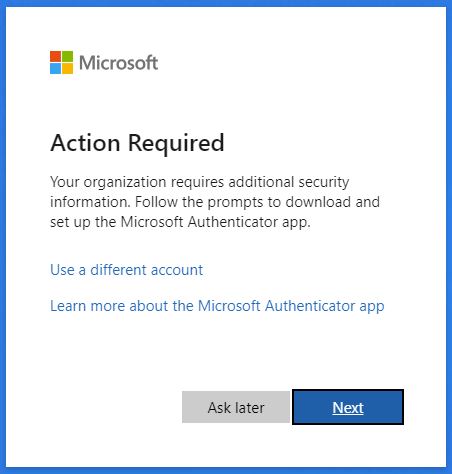
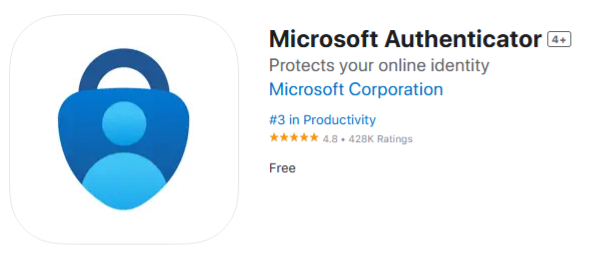
Step 2: Download the Microsoft Authenticator App
Get your mobile phone and download the app from either the Google Play Store or the Apple App Store.
After successful install on your phone, click “Allow” to allow app notifications.
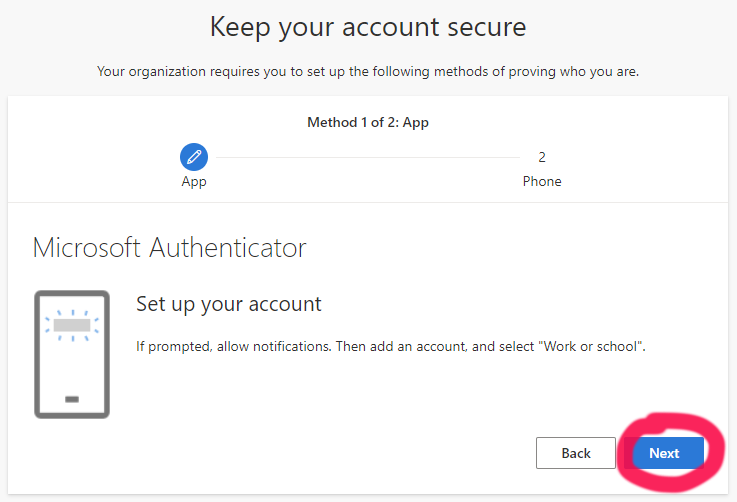
On your computer screen, click “Next” on the “Keep your account secure” pop-up.
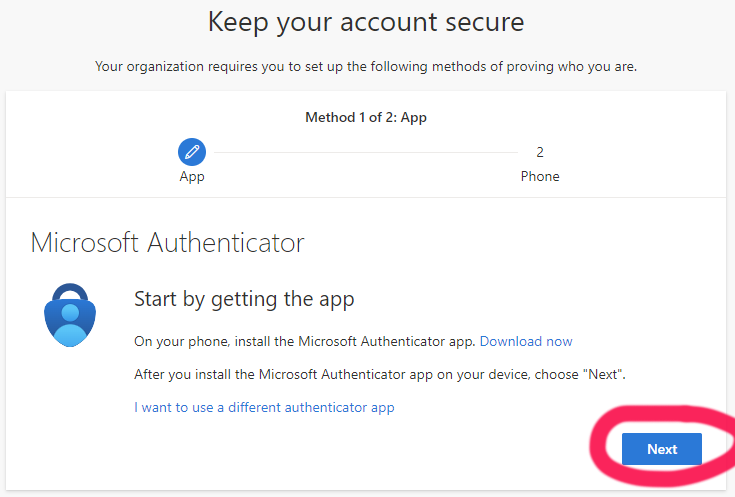
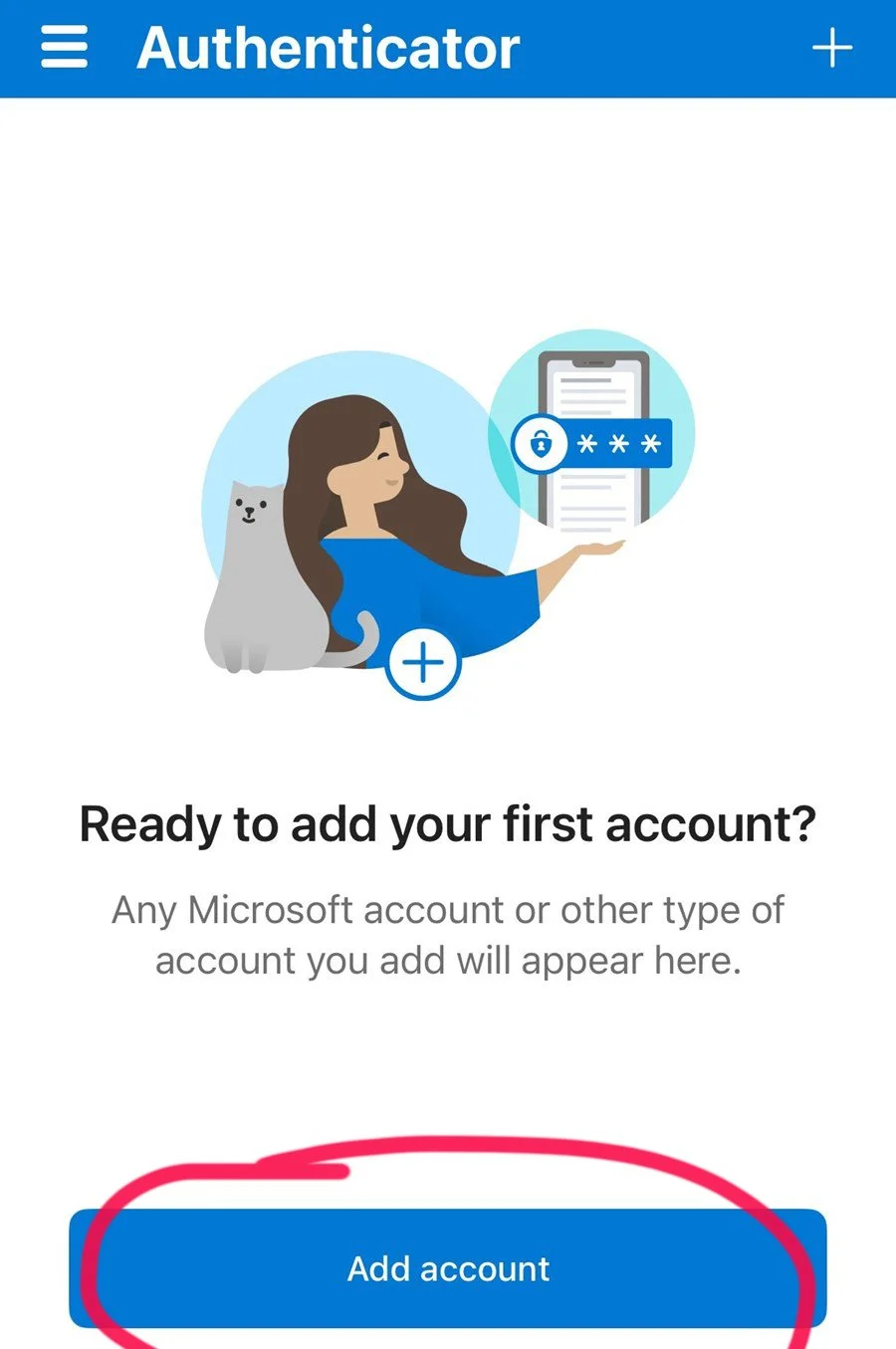
Step 3: Authenticator App Configuration
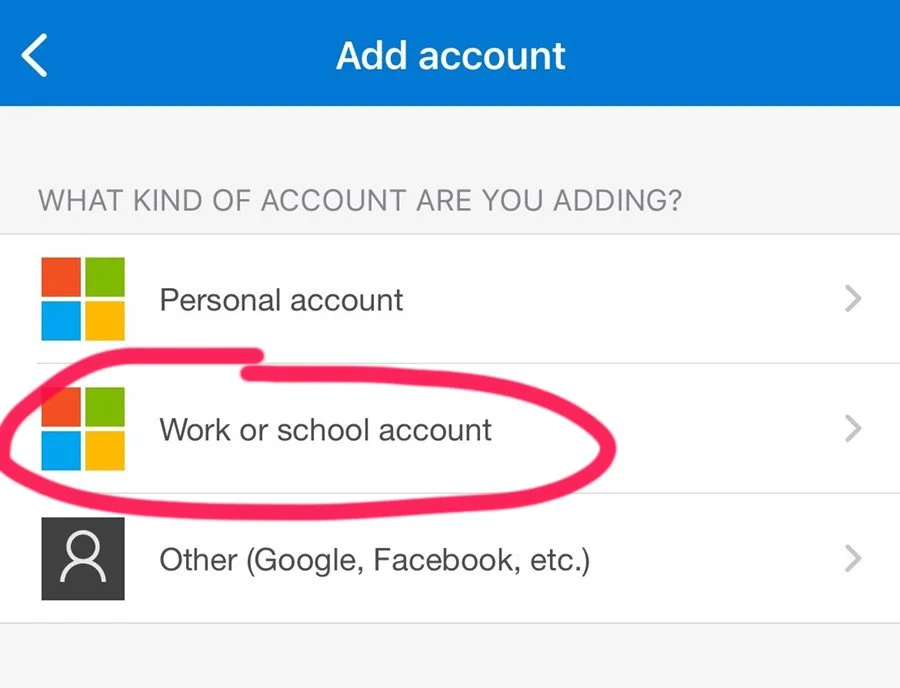
Open the Microsoft Authenticator app on your phone and select “Add account.”
Choose “Work or School Account”.
Step 4: Scan the QR Code
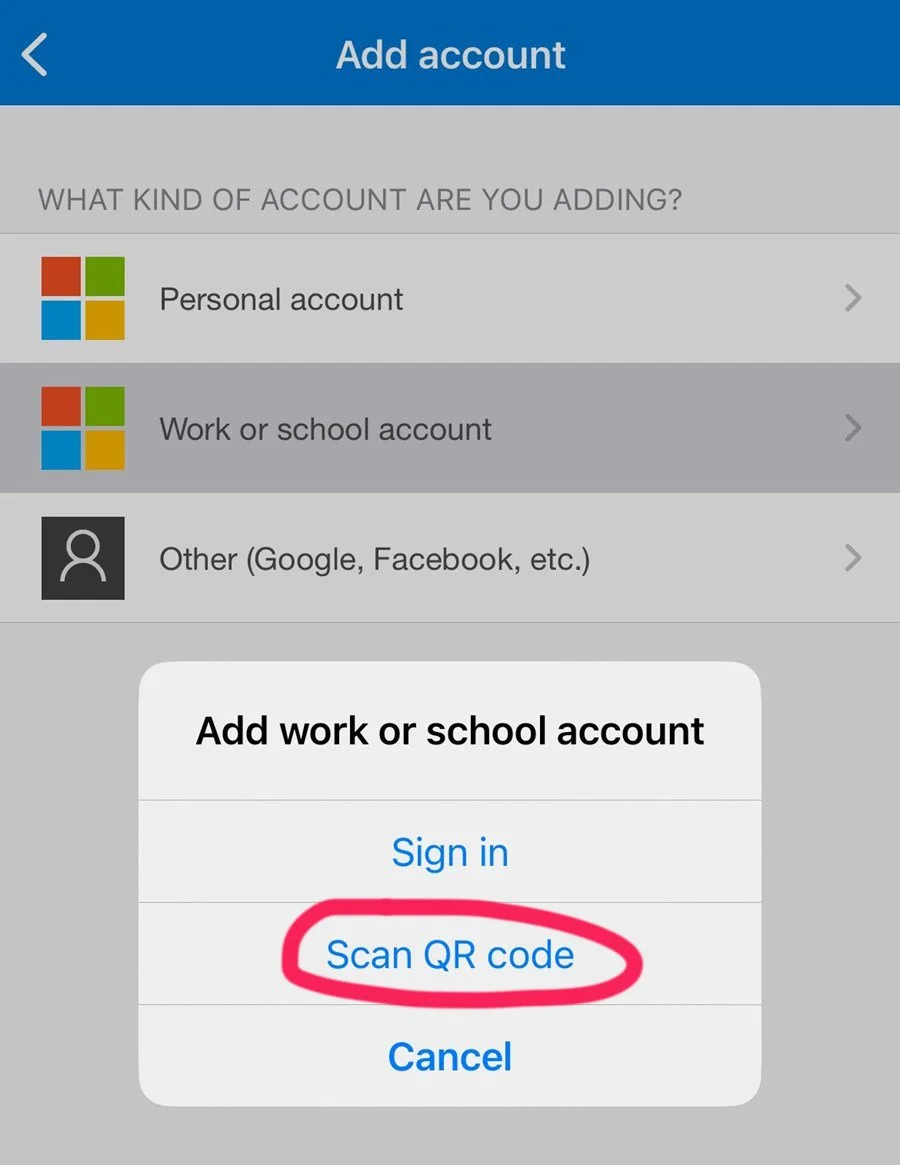
Select “Scan QR code” in the app and allow camera access.
On the “Keep your account secure” pop-up on your computer, click “Next” to see the screen with the QR code.
Scan the QR code with your the Authenticator app on your phone and then click “Next” on your computer.

Step 5: Confirm the Setup
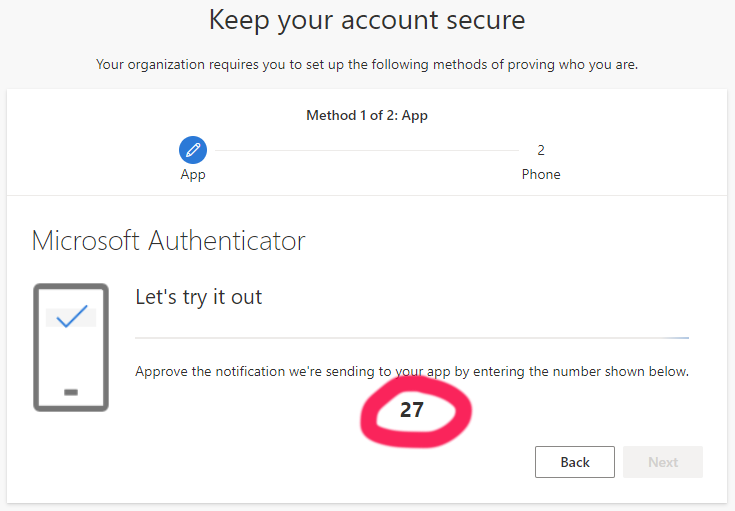
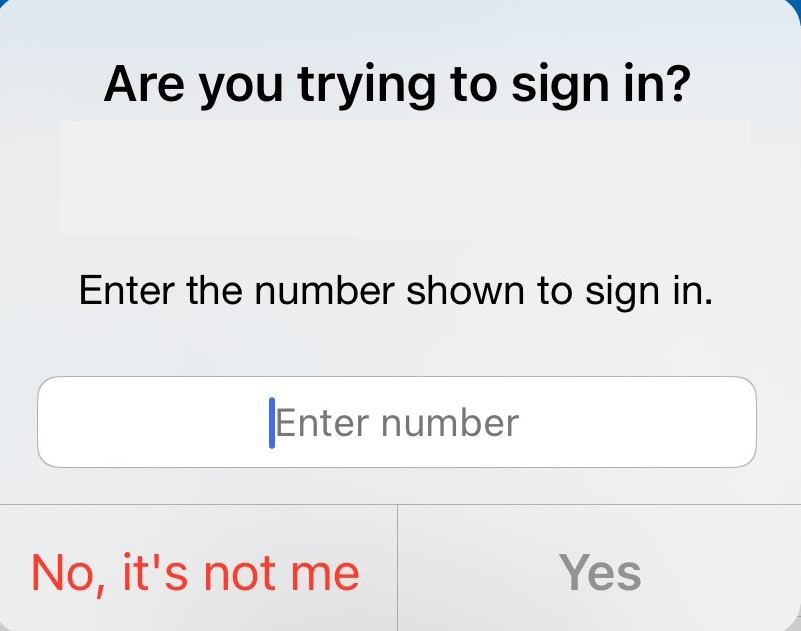
Confirm the number displayed on the “Keep your account secure” computer pop-up by entering it into your phone and selecting “Yes.”
Step 6: Change Your Password
Once your identity has been confirmed using the Authenticator app, you will be asked to update your password. Create a new password that is 15 characters long and includes capital letters, lower case letters, numbers, and symbols. We recommend using a passphrase, which is a group of words that is easy to remember but hard for others to guess.
For example, 6MonkeysRLooking^ is a passphrase that is easy to remember. Do not use this example as your password.